Perform the following instruction when you work on a Mac OS X-system with version 10.11 or higher, including Catalina.
Before you begin:
- make sure you are logged in to hancard.han.nl
- if you have an older version of the Canon Internet Printer installed, first remove the old version!
- Download the file here.
- Double-click the downloaded file.
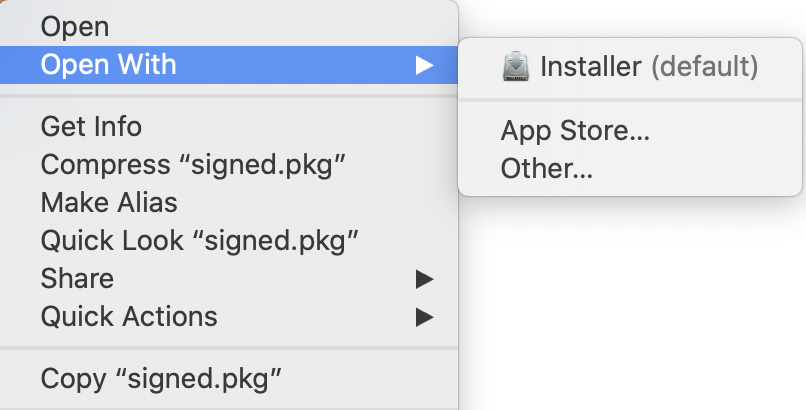
- Control-click the file: signed.pkg

- Click [Open with] → [Installer (default)].
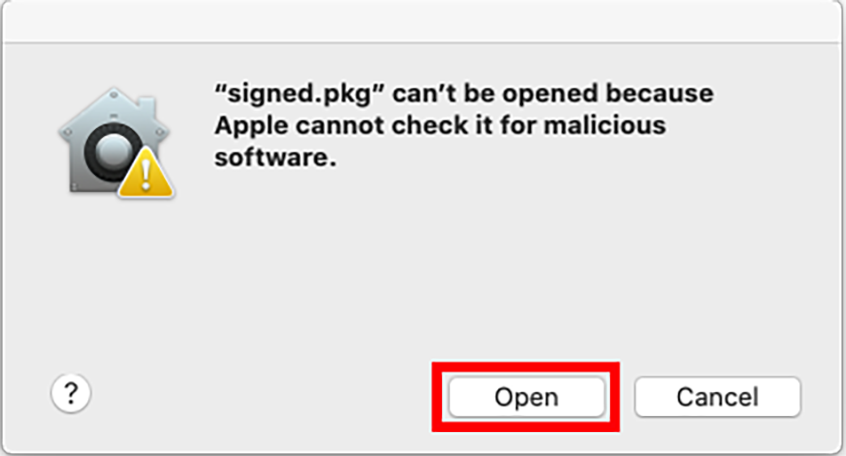
- If you see this notification, click [Open] in the security window.
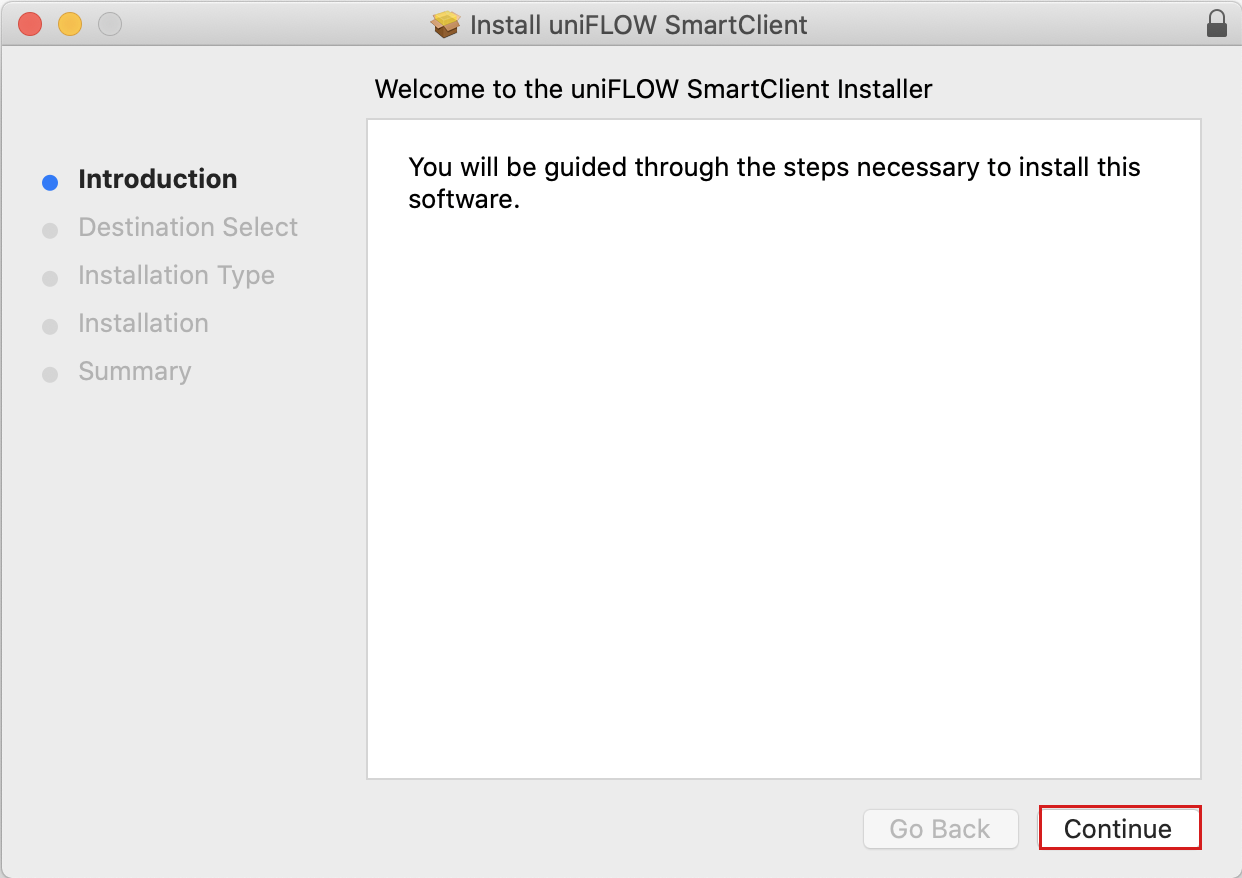
- The wizard opens. Click [Continue] in the [Introduction] page.
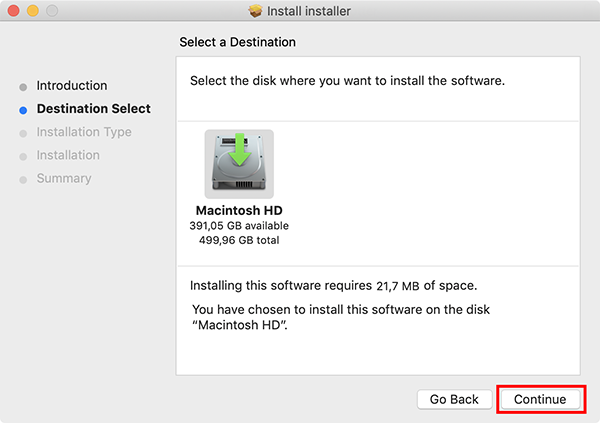
- Select the destination and click [Continue].
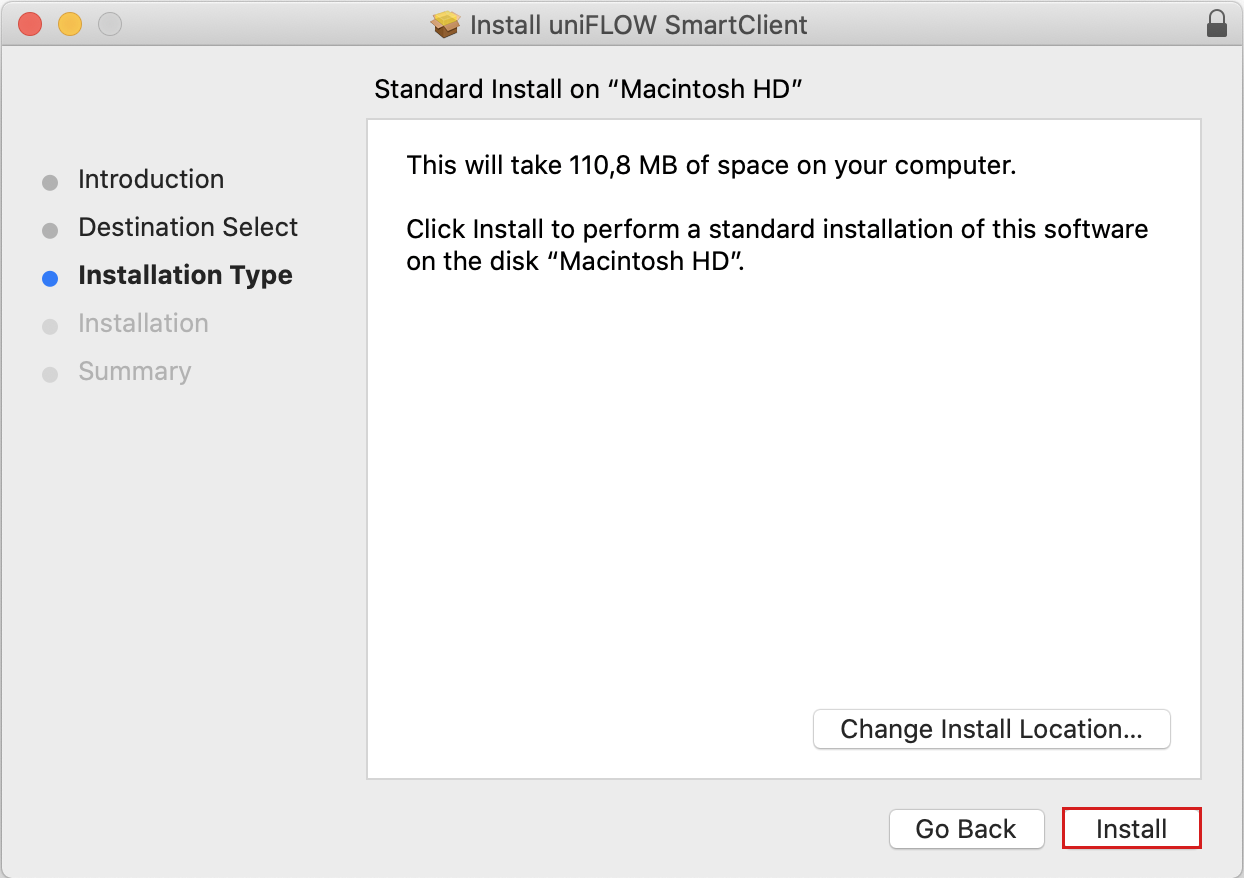
- Click [Install] in de [Installation Type] page.
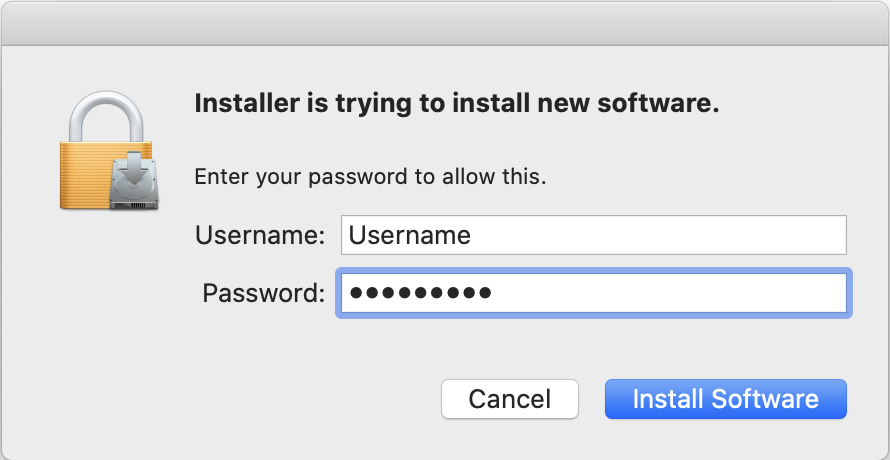
- Enter your Mac administrator credentials and click [Install software].
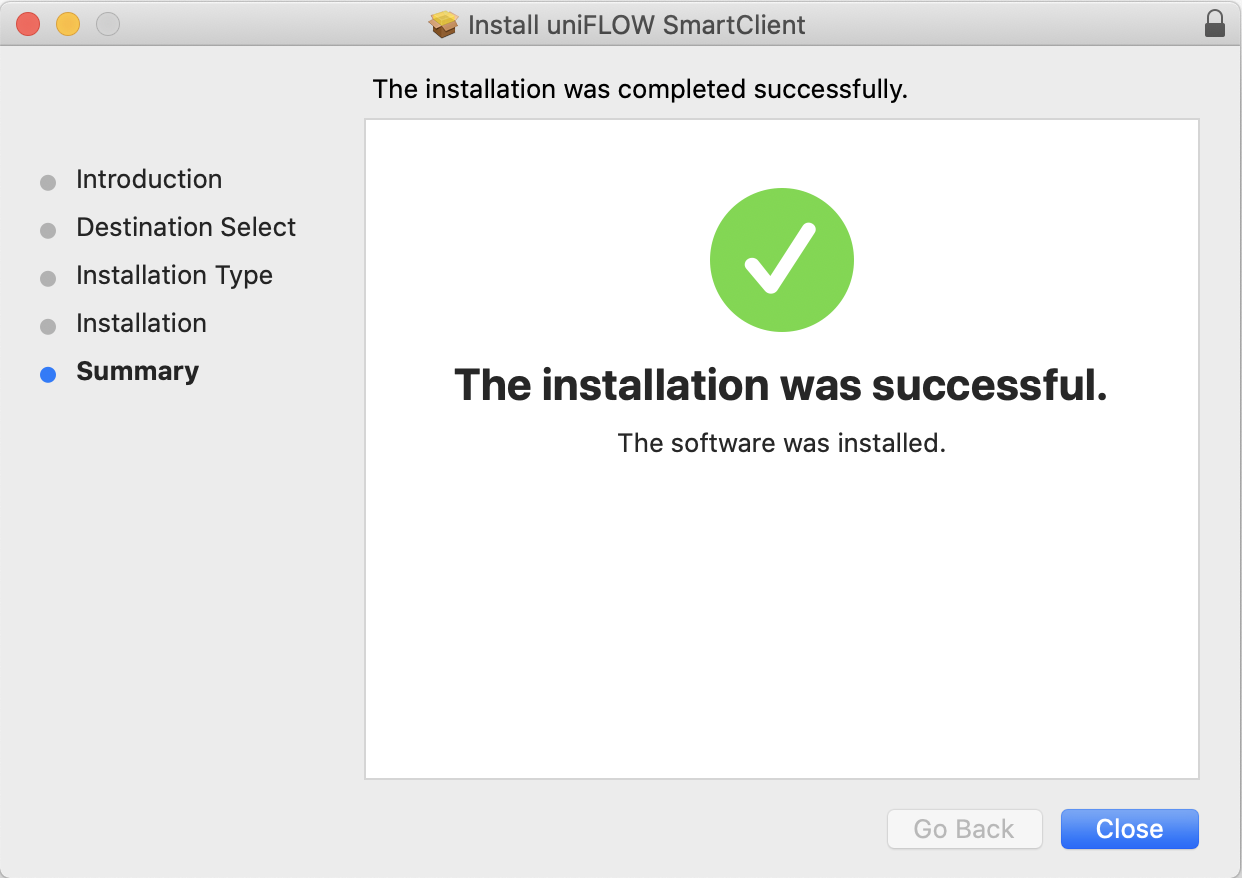
- When the installation has been completed, click [Close] in de [Summary] page.
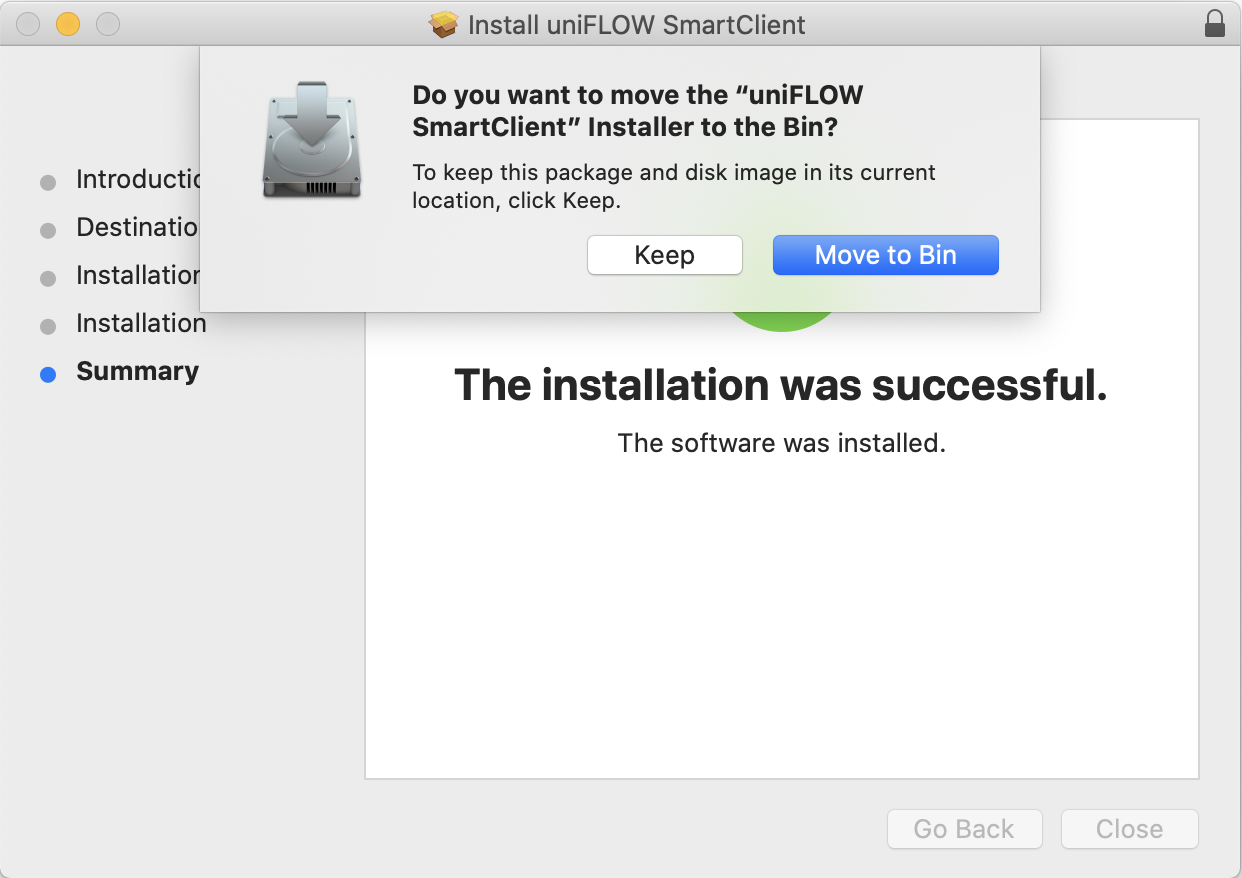
- If required, remove the installation program.
- Click Apple menu
 → System preferences → Printers & Scanners.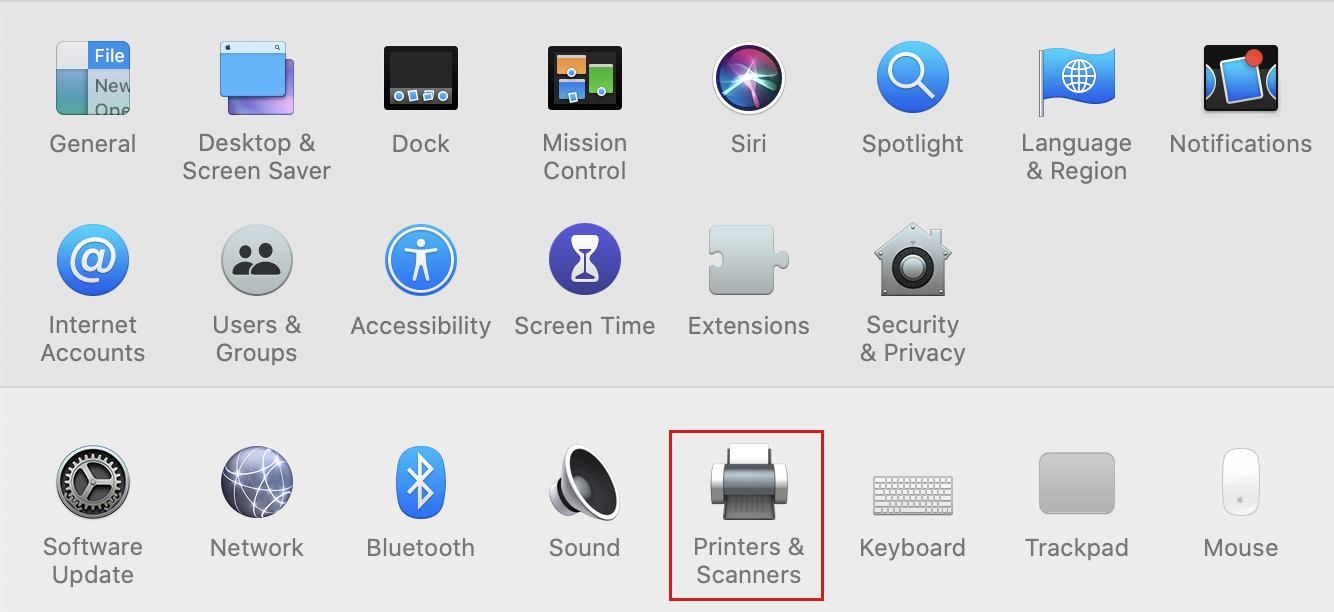
- Control-click the just added printer.
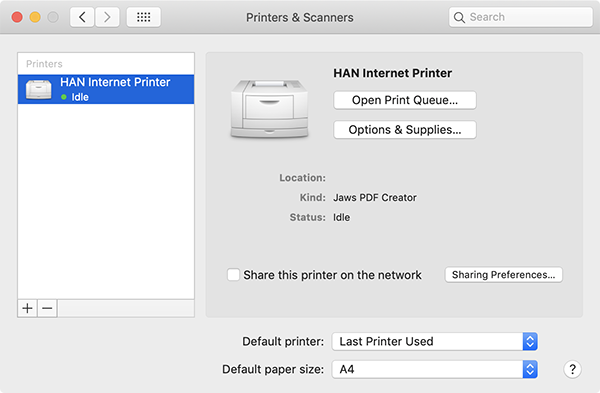
- Select [Set as default printer] if you want to use the [HAN Internet Printer] as standard printer.